Studio render on a bonnet
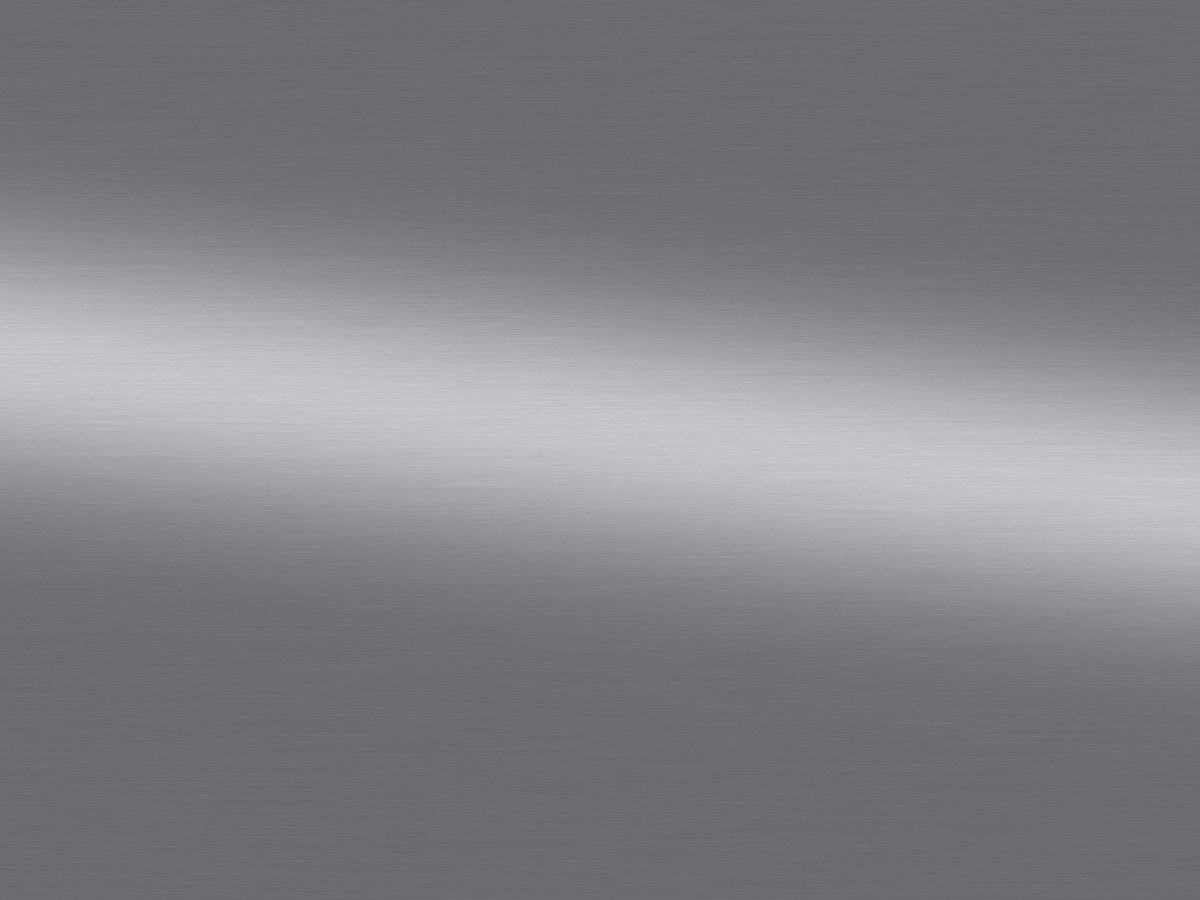
Drag to turn the part. Live preview using this pack's maps — your Fusion render will differ slightly.
Maps












Fusion settings
DownloadBrushed Aluminium – Fusion setup
1. Appearance > Manage > Create new appearance > Standard Surface (Metal).
2. Base: Color = image `brushed_aluminium_basecolor.png`, weight 1.0. Metalness 1.0 (or image `brushed_aluminium_metallic.png`).
3. Specular: weight 1.0, roughness = image `brushed_aluminium_roughness.png` (about 0.3 if you skip the map).
4. Coat: weight 0 (bare metal). Set coat 1.0 / roughness 0.03 for a lacquered look.
5. Geometry > Normal: image `brushed_aluminium_normal_gl.png`, depth 0.1.
6. Texture scale: 50 mm x 50 mm. Rotate 90 degrees to change the brush direction.
7. Optional: Specular > Anisotropy 0.6 to stretch highlights along the grain.
Inventor settings
DownloadBrushed Aluminium – Inventor setup
1. Appearance Browser > Create new Metal appearance (or Generic with Highlights: Metallic).
2. Color: image `brushed_aluminium_basecolor.png`, Image fade 100.
3. Glossiness 60, Highlights Metallic. Reflectivity: Direct 60, Oblique 80.
4. Bump: image `brushed_aluminium_normal_dx.png`, amount 0.1 (older versions: `brushed_aluminium_height.png`, amount 0.03).
5. Scale 50 mm x 50 mm. Rotate 90 degrees to change the brush direction.