Studio render on a bonnet
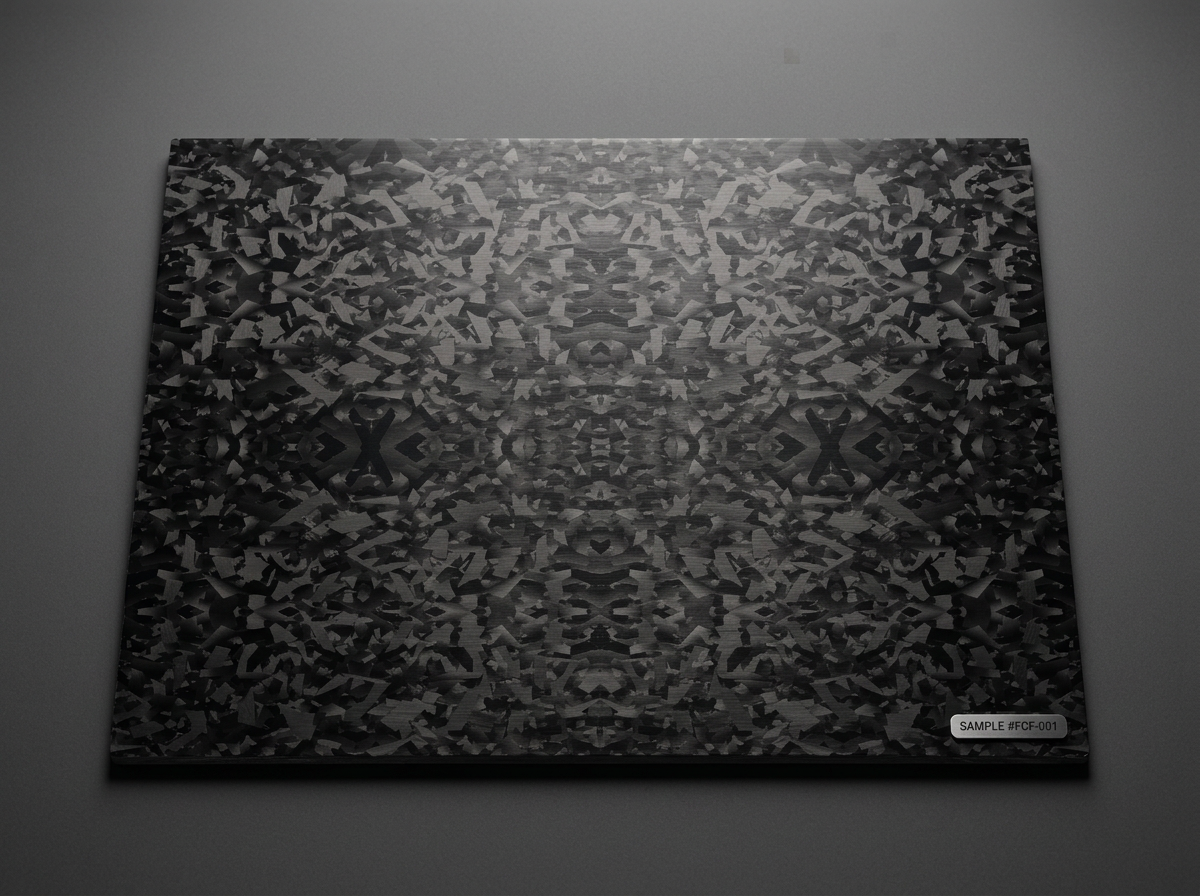
Drag to turn the part. Live preview using this pack's maps — your Fusion render will differ slightly.
Maps
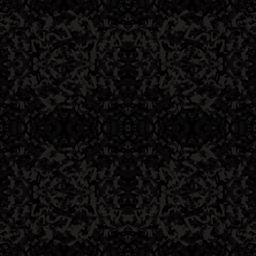
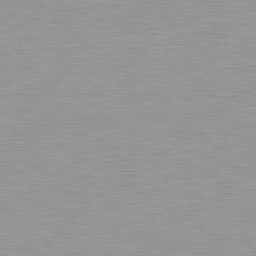
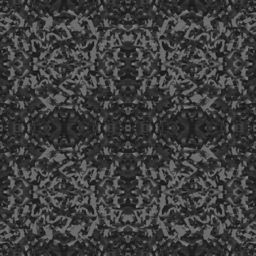

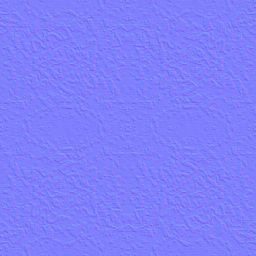

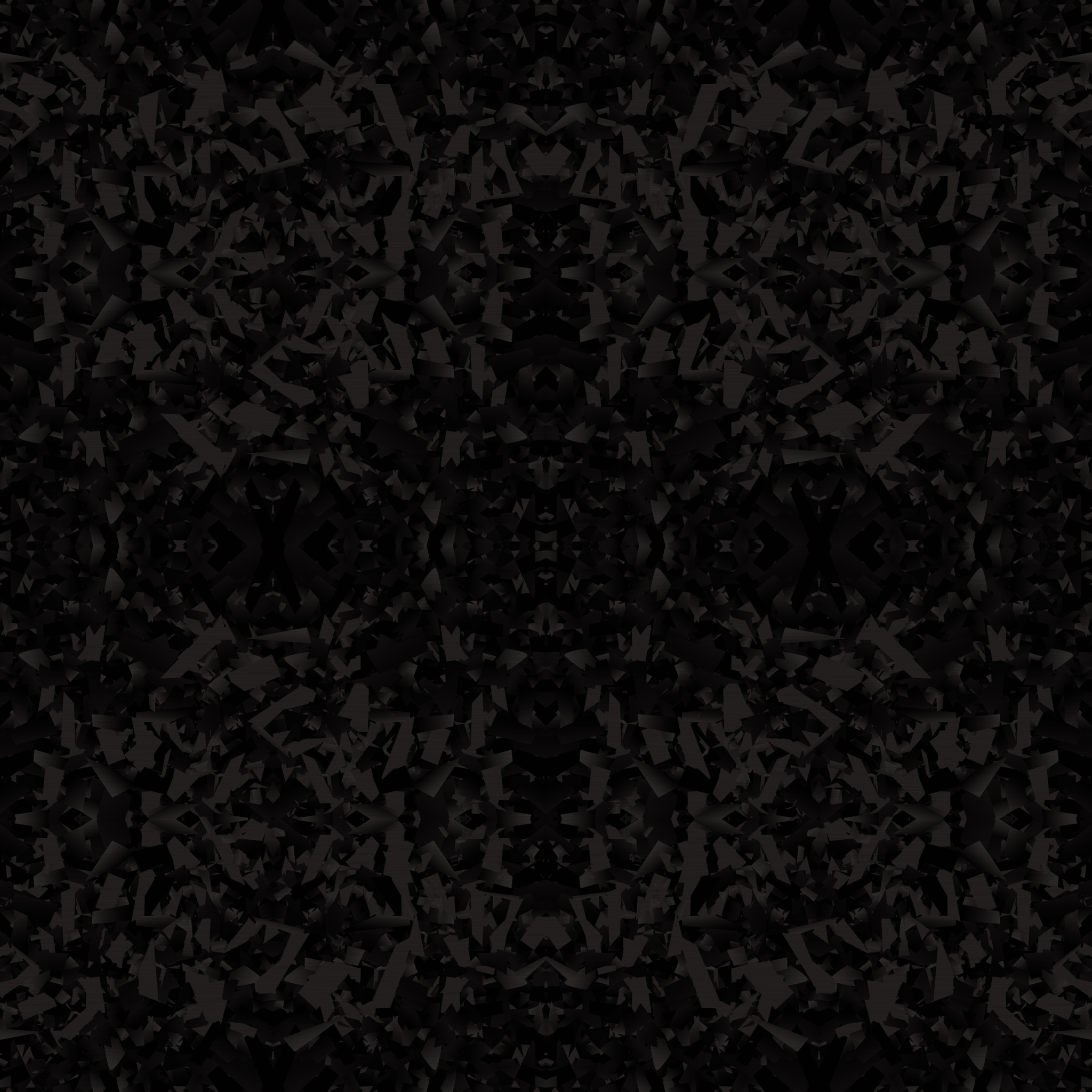
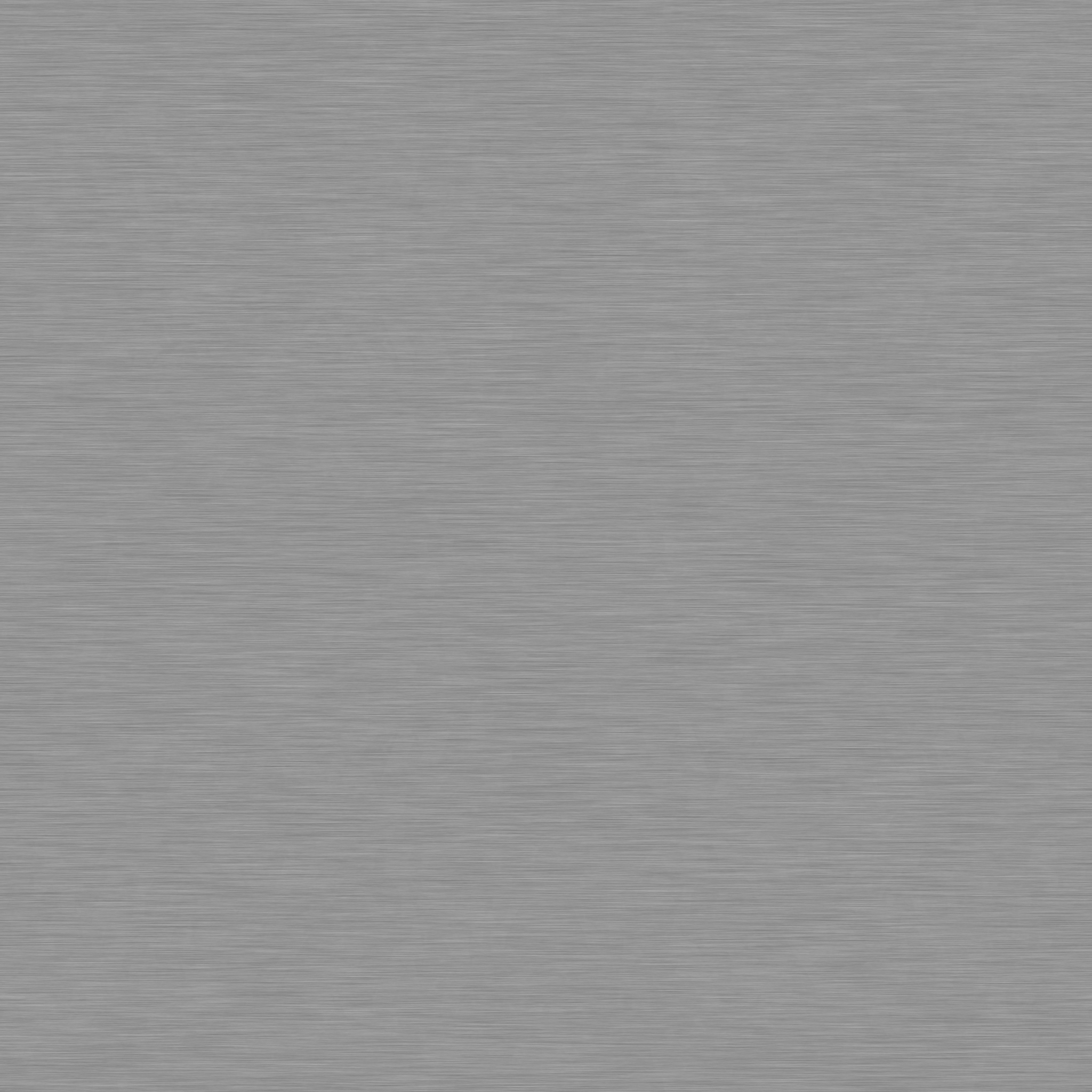
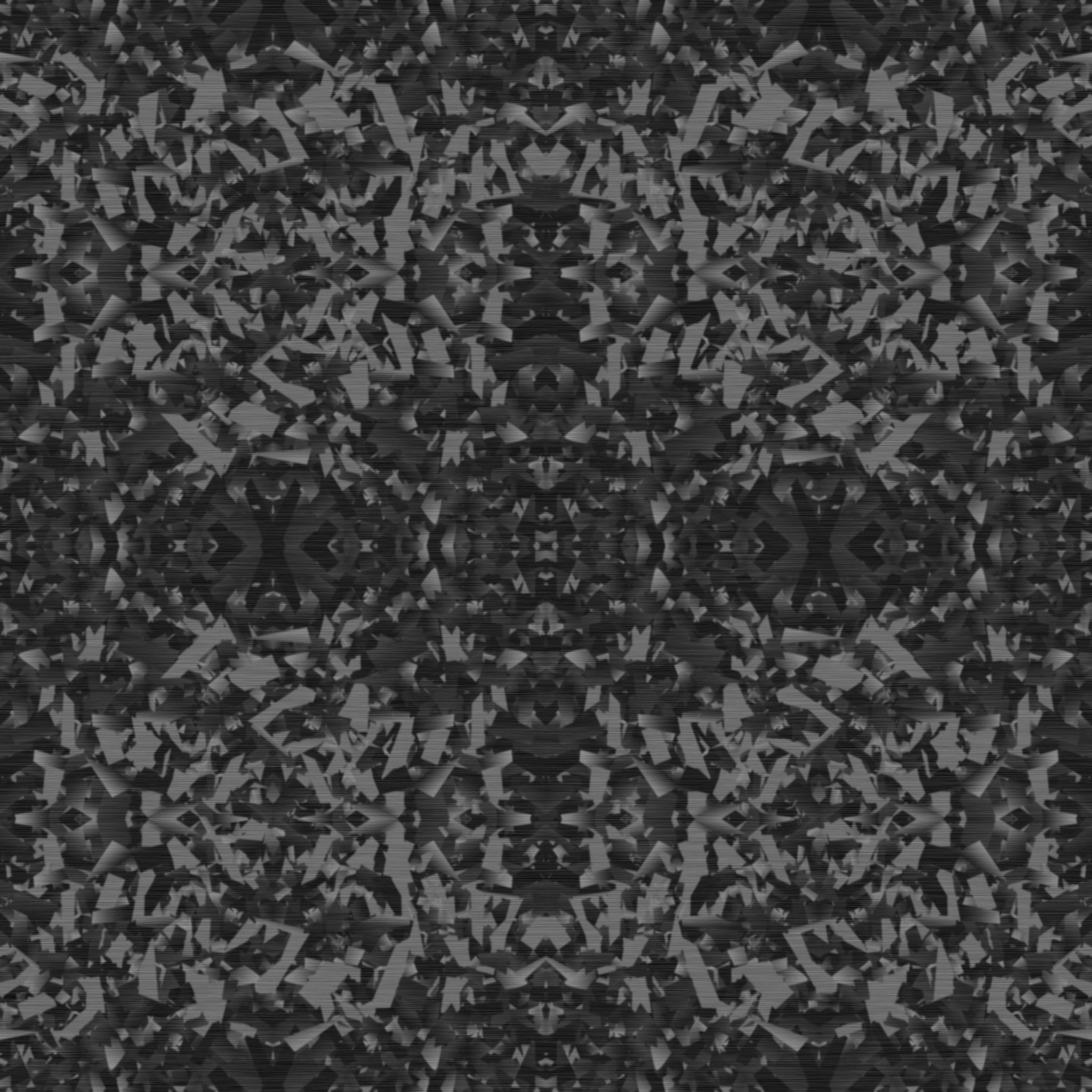


Fusion settings
DownloadForged Carbon Brushed – Fusion setup (Advanced / Standard Surface)
Directional brushed grain over the flakes, no clear coat.
1. Press **A** → In This Design → duplicate an appearance, rename `Forged Carbon Brushed`.
2. Right-click → **Edit** → **Advanced...**
| Slot | File / Value |
|---|---|
| Base > Color | forged_carbon_brushed_basecolor.png (Weight 0.65) |
| Base > Metalness | 0 |
| Specular > Weight | 0.6 |
| Specular > Roughness | forged_carbon_brushed_roughness.png (0.42 average, streaked) |
| Coat > Weight | 0 (no clear coat) |
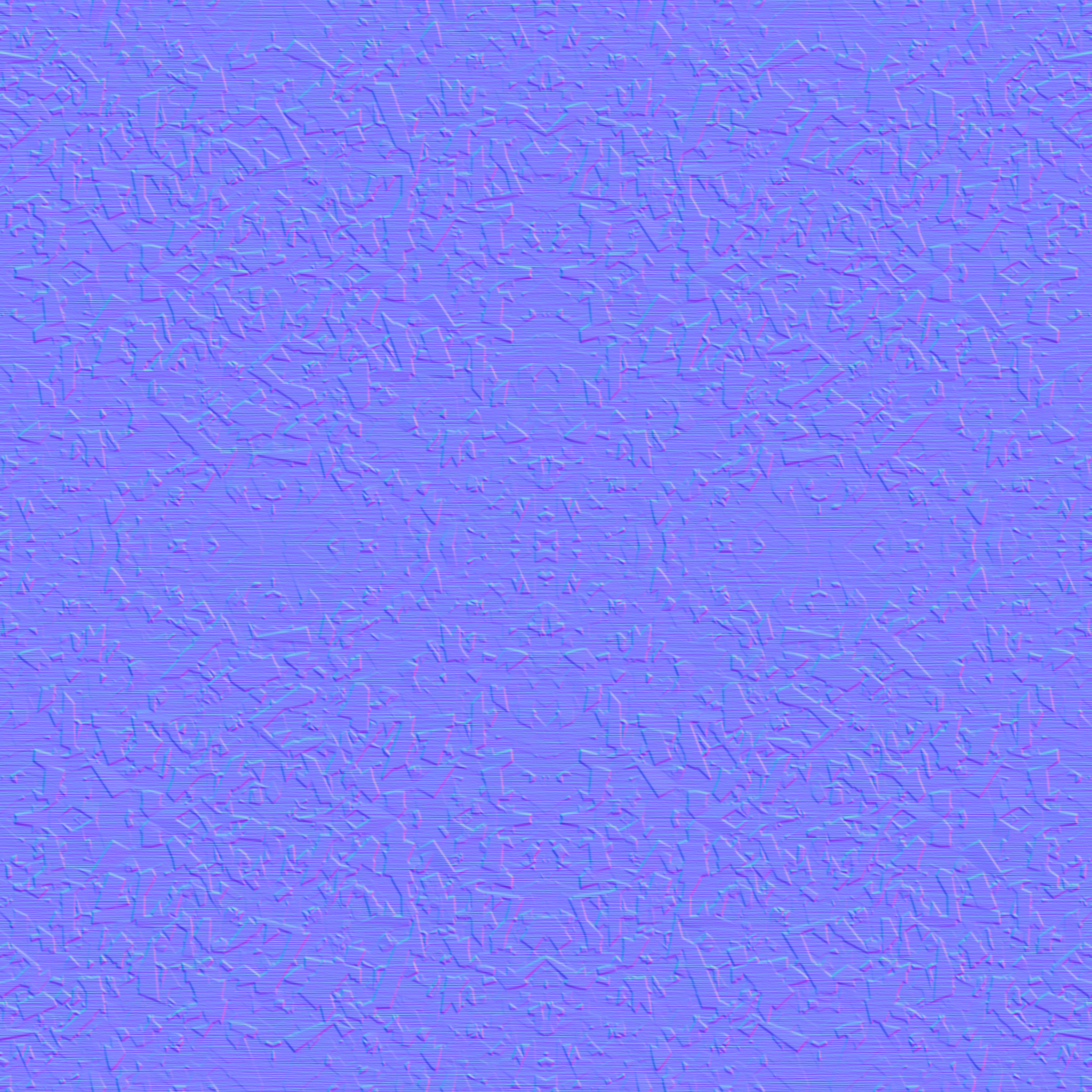
| Geometry > Normal | forged_carbon_brushed_normal_gl.png, Normal map, Depth 0.6 |
3. Tick **Link texture transforms**, sample size **100 × 100 mm**, Repeat on.
4. Right-click → **Add to** → My Materials to save to your library.
**Grain direction:** the brushing runs along the texture's horizontal axis. Rotate the texture (Transforms > Rotation) to align it with the part.
Inventor settings
DownloadForged Carbon Brushed – Inventor setup (Generic appearance)
Directional brushed grain over the flakes, no clear coat.
1. Appearance browser → **Create New Appearance** → Generic, name `Forged Carbon Brushed`.
| Section | File / Value |
|---|---|
| Generic > Color | Image: forged_carbon_brushed_basecolor.png, Image Fade 65 over RGB 10,10,10 |
| Generic > Glossiness | 55 (or Image: forged_carbon_brushed_glossiness.png) |
| Generic > Highlights | Non-metallic |
| Reflectivity | Direct 10 / Oblique 45 |
| Bump | forged_carbon_brushed_normal_gl.png, Normal map, Amount 0.6 |
| Bump (older versions) | forged_carbon_brushed_height.png, Amount 0.2 |
2. Each image → Transforms → Sample Size **100 mm**, Tile, **Link texture transforms** on.
3. Right-click → **Add to** → your user library.
**Grain direction:** the brushing runs along the texture's horizontal axis. Rotate the texture (Transforms > Rotation) to align it with the part.